Hold a key for accents.
Hold e and pick é, è or ê with a number, the arrows or a click.
Hold alt. Press any key.
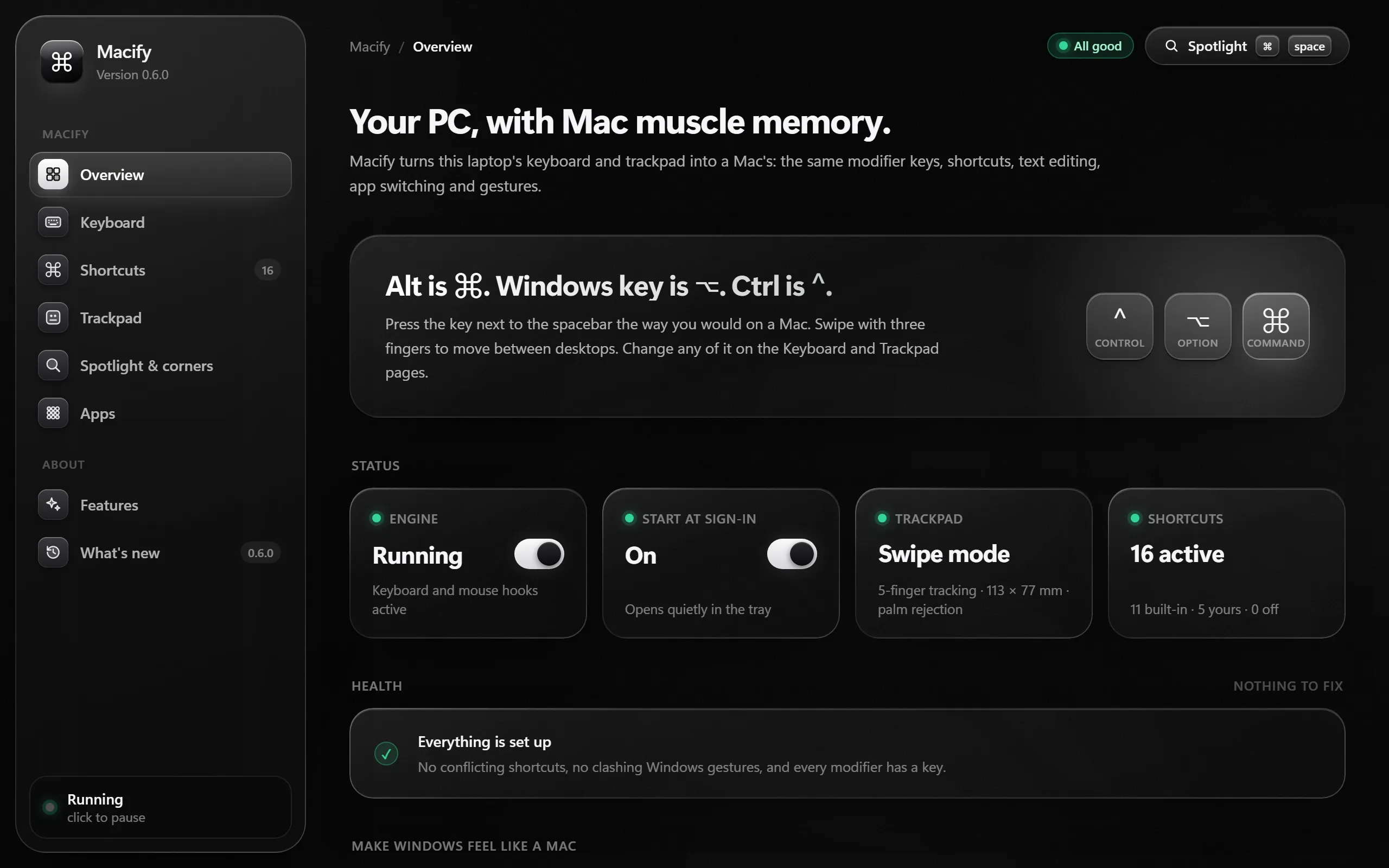
The key next to the spacebar becomes ⌘ Command. The rest follows.
No drivers. No admin rights. A small ⌘ in your tray, and that's it.
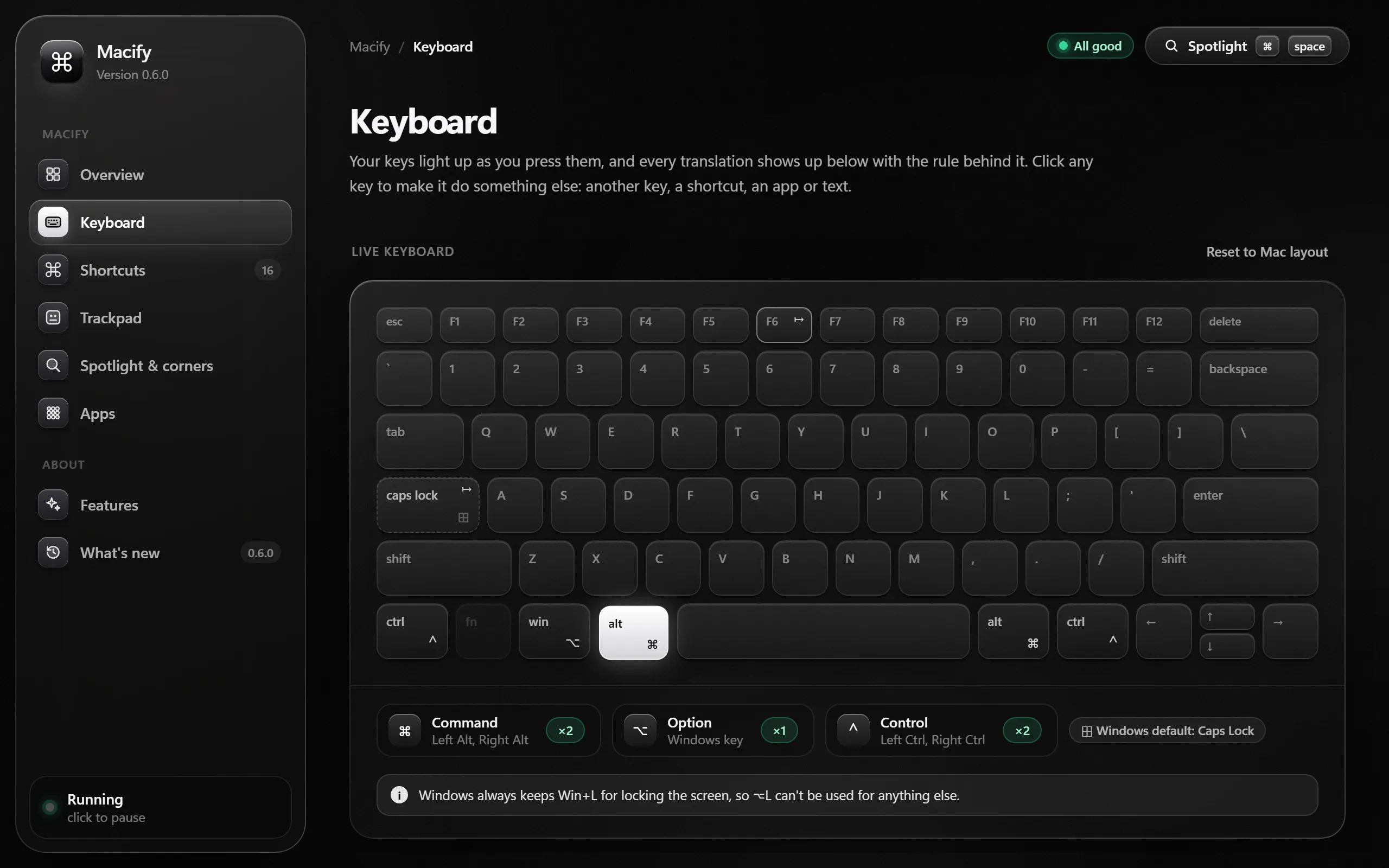
Hold alt and press a key, or pick a shortcut. This is what Macify does, live.
Rectangle's keys, built in. Halves, quarters, thirds and full screen, one shortcut each.
Your apps along the bottom, growing under the pointer. Wi-Fi, sound and the clock along the top, with Control Center one click away.
Try it. Click an app to open it, right-click for its menu, and click the status icons for Control Center.
Apps, files, sums and settings. Type a Mac name like Activity Monitor, and Macify opens Task Manager.
Try it for real. Click the box, or press / or alt Space anywhere on this page.
Rest three fingers and move. Windows, text and files follow. Lift to drop.
Hold two fingers still for two seconds, then draw with one. Macify matches your shape and runs what you gave it.
The details you'd miss on day two. Already there on day one.
Hold e and pick é, è or ê with a number, the arrows or a click.
⌘⇧3 for the screen, ⌘⇧4 for an area, then Space for a window. Saved with a Mac-style name and a thumbnail in the corner.
Tap space twice after a word. You get a period and a space.
Select a file in File Explorer and tap Space. Arrow keys step through the folder.
Every shortcut that works in the app in front of you.
Record any keys, then choose what they do: send other keys, open an app, file or link, type a line of text, or run a Macify action. In every app, or just one.
The file shortcuts you use a hundred times a day.
To another key, a shortcut, an app or a line of text. Everywhere, or in one app.
Short triggers that expand as you type, in any app.
Push the pointer into a corner for Mission Control, the desktop or anything else you choose.
Terminals keep ⌃C for stopping a program. Remote desktops, virtual machines and the games you choose keep plain Windows keys.
Switch it on and a tap only shows a reminder. A slip from ⌘W can't close every window.
Settings, Task Manager and other apps ignore Ctrl+W. Macify closes the window for you.
Short guides for iCloud, Phone Link, Apple Devices, Apple Music and Apple TV, each with an Open button.
Every key, shortcut and gesture in one place. Watch your keys light up as you type. Change anything with a click.
Macify runs as you, from the tray. Nothing to install system-wide.
Your Google email only checks your license. No analytics. Your keys stay on your PC.
Right-click the ⌘ in your tray to pause or quit. Your PC goes right back to normal.
Pricing
No subscription. No tiers. Pay once and Macify is yours for good.
Lifetime license
After checkout you get your download link. Sign in to Macify with the Google account you paid with. One PC at a time. Needs Windows 11, the .NET 8 Desktop Runtime and WebView2.
Alt is ⌘ Command, the Windows key is ⌥ Option, and Ctrl is ⌃ Control. Any ⌘ shortcut Macify doesn't handle itself becomes the same shortcut with Ctrl, so ⌘T opens a tab and ⌘⇧N opens a new window. You can remap any of it.
Only if you want it to. The Dock and menu bar are off until you switch them on. With the Dock on, the taskbar hides itself and the menu bar takes over its clock, Wi-Fi, sound and battery. Switch it off and the taskbar comes back.
No. Macify runs as you, from the tray, and starts at sign-in if you want it to.
No. Remote desktops and virtual machines keep normal Windows keys from the start, and you can add any game or app to that list.
Windows doesn't let a normal app send keys to them, so they keep normal Windows keys. Everything else works as usual.
One switch. For three-finger drag, set Windows' three-finger swipes to Nothing. Macify's setup checklist walks you through it.
No. Switch them on from the Trackpad page, then record each shape by drawing it twice. Hold two fingers still for two seconds to start drawing, and press Esc to cancel.
No. Macify is an independent app for people who love how a Mac feels and work on Windows.